
You can turn off your Roomba by pressing and holding the main “CLEAN” button on the robot’s face for three seconds. This action puts the device into a deep sleep mode to preserve its battery health. If you own a model with physical buttons, the light ring will turn off to confirm it’s powered down. For newer models that stay on the dock, the robot enters a low-power state automatically when it isn’t in use.
Ways to turn off your Roomba
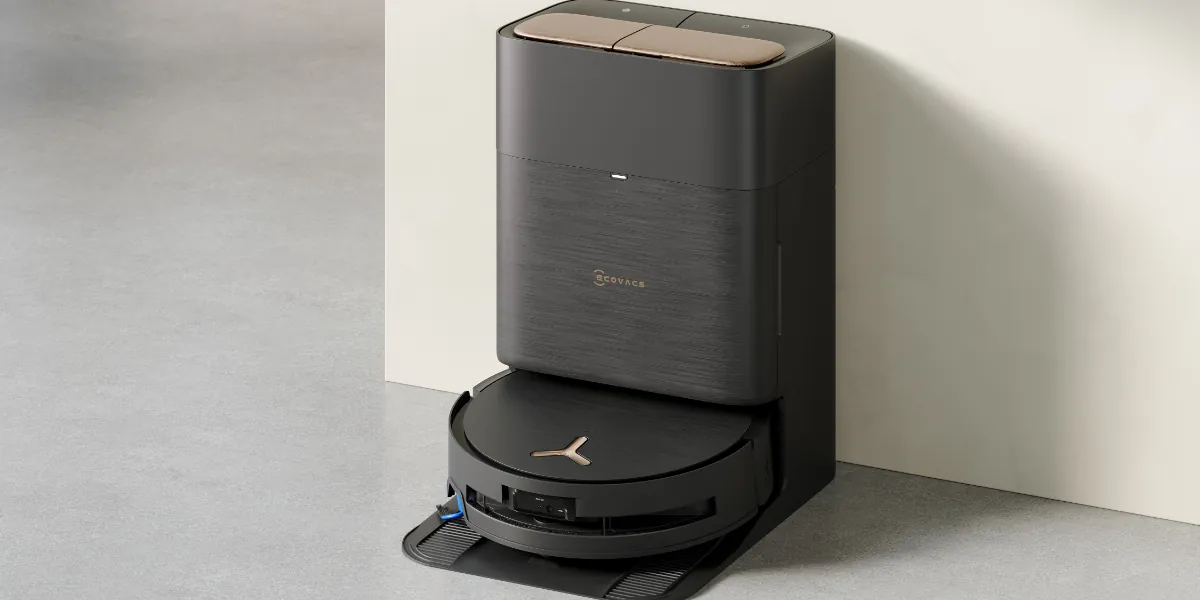
Hold the “CLEAN” button for three seconds until the light ring turns off. This initiates a deep sleep mode that preserves battery health during short idle periods.
Place the robot on the Home Base to keep it charged and ready for tasks. If the unit sits off the dock for more than 48 hours, the internal clock may reset, causing you to lose your scheduled cleaning routines.
Use the iRobot Home app to set a “sleep” schedule if you want it quiet. This prevents the robot from waking up for routine maintenance cycles during the night.
Remove the battery if you plan to store the unit for more than one month. Lithium-ion cells degrade if left in a discharged state for extended periods. Store the battery in a cool, dry place away from direct sunlight to maintain its total lifespan.
Press the bumper or any button to wake the unit once it’s powered down. If the robot fails to respond, it has likely entered a hard reset state. In this case, you must place it back on the charging dock for at least ten minutes to re-establish the connection.
Why You Should Manage Power States
The internal battery in your robot vacuum is a lithium-ion unit that performs best when it stays within a specific voltage range. Keeping the device powered on and docked is the standard way to ensure it has enough energy for its next scheduled run. When the robot stays on the dock, it manages its own charging cycles to prevent the battery from overcharging or dropping to a critical level.
If you’re going away for a long time, you must consider the discharge rate of the battery. Leaving the unit off the dock for several weeks will cause the battery to slowly drain, which can lead to permanent capacity loss. If the voltage drops too low, the internal safety circuit may prevent the robot from accepting a charge again. This is why storing the robot while fully charged is essential for long-term health.
Most users make the mistake of leaving the robot in a cold garage or unheated shed during winter. Extreme temperatures accelerate chemical degradation, often cutting total battery lifespan by half. If you must store the unit for more than three weeks, disconnect the battery pack or toggle the physical power switch if your model includes one.
The robot also uses a small amount of power even when it isn’t cleaning. This “standby” mode allows it to receive updates and respond to app commands. If you notice your robot is warm to the touch while docked, it’s likely running a software update or balancing its battery cells. This is a normal process that doesn’t require you to take any action.
When Powering Off Varies
The steps to manage your device change depending on the specific model and how you use it.
| Situation | What changes | What to do instead |
|---|---|---|
| Model with no buttons | Uses app control | Use app to power down |
| Storing for months | Battery will drain | Remove battery physically |
| Robot is stuck | Power button unresponsive | Hard reset by holding buttons |
| Dock power off | Battery won’t charge | Keep dock plugged in |
| Low battery state | Can’t enter sleep mode | Place on dock immediately |
If you’re storing the unit for more than three months, you must charge the battery to at least 50% before removal. Storing a battery at 0% leads to a deep discharge state that prevents the lithium cells from ever accepting a charge again.
If the light doesn’t blink after this duration, the main board is likely locked in a boot loop.
Distinguish between a software shutdown and a hard reset by checking the LED status. If the light remains solid, the system is still active. If the light pulses slowly, you have successfully entered deep sleep.
Never force a manual power-off while the unit is performing a firmware update. Cutting power during a write cycle will corrupt the internal memory, turning a simple reset into a permanent hardware failure. Always wait for the status light to turn off entirely before moving the unit.
How to Power Down Correctly
Stop any active cleaning cycle by pressing the “CLEAN” button once so the robot pauses its movement. Never lift the unit while the wheels are spinning, as this can trigger an emergency error code that forces a hard reboot.
Press and hold the “CLEAN” button firmly for three seconds until the light ring goes dark. If the light flashes red instead of turning off, the battery is likely too low to initiate a proper shutdown; place it on the dock for ten minutes before trying again.
If your Roomba has a separate power switch on the side, slide it to the “O” position. This physical disconnect is essential for long-term storage, as it prevents the internal clock from slowly draining the battery.
Check that the light ring remains off to confirm the device is in its deepest sleep state. If the light pulses, the unit is still in standby mode and will continue to consume power.
If you’re putting the unit away for storage, ensure the room temperature stays between 50°F and 86°F. Exceeding these limits leads to permanent chemical degradation of the lithium-ion cells.
Store the robot on a flat, dry surface away from direct sunlight to protect the plastic casing. UV exposure causes the chassis to become brittle over time, which eventually leads to stress fractures near the bumper sensors.
Mistakes That Ruin Your Battery
Leaving the robot unplugged for months causes the battery to lose its ability to hold a charge. If the voltage drops below a critical threshold, the internal cells enter a deep discharge state that often becomes permanent. Aim to keep the unit docked and powered at all times, even when you’re away for several weeks.
Turning off the wall outlet while the dock is connected prevents the robot from maintaining its charge. This forces the battery to cycle unnecessarily, which accelerates chemical degradation. If you must cut power to save energy, unplug the dock entirely rather than simply flipping the wall switch.
Storing the unit in a damp garage can cause internal corrosion that damages the motherboard. Moisture creates microscopic bridges between components, leading to short circuits that are rarely covered by standard warranties. Keep your device in a climate-controlled space where humidity stays below 50 percent.
Forcing a power-off while the robot is actively updating its firmware can corrupt the system files. If the robot stops responding or fails to boot, you may need a factory reset. Always wait for the status light to turn solid before you move or touch the machine.
Frequently asked questions
How long can a roomba stay off the dock?
A Roomba can stay off its dock for approximately 30 days before the battery reaches a critically low level. If you plan to leave it for longer, remove the battery to prevent permanent damage. Always monitor the status light, as a blinking red light indicates the battery needs immediate charging.
Is it safe to leave my roomba plugged in all the time?
It’s safe to leave your roomba plugged into the dock at all times because the internal system manages the charging process. Once the battery reaches full capacity, the dock stops sending high-voltage current to the unit. This prevents overcharging and keeps the device ready for your next cleaning session, which is the recommended way to maintain your battery’s lifespan for several years of use.
Why is my roomba light still on?
The light stays on if the robot is currently active, charging, or finishing a software update. If you held the “CLEAN” button for three seconds and the light remains, try pressing it again to ensure the command registered. Some newer models require you to use the mobile app to fully disable the light ring, as they’re designed to stay in a “ready” mode whenever they’re docked.
What happens if the power goes out while it’s on the dock?
If the power goes out, the robot will remain on the dock but will stop charging immediately. It will continue to use a small amount of battery power to stay in standby mode until the battery level drops. Once the power returns, the robot will automatically resume its normal charging cycle without any extra steps needed from you to wake it up or reset the connection.
Does it matter if I turn it off every day?
It doesn’t matter for daily operation, but you don’t need to turn it off every day. The robot is designed to live on the dock and stay in a low-power state between tasks. Turning it off and on manually every single day is unnecessary wear on the buttons and interrupts the robot’s ability to sync with your home network or receive important software updates.
How do I know if the battery is dead?
The battery is likely dead if the robot doesn’t wake up when you press the “CLEAN” button after it has been on the dock for at least four hours. If the light ring shows a solid red color or doesn’t turn on at all, the battery can no longer hold a charge. You can check the battery health status inside the iRobot Home app under the product settings menu.
Conclusion
Keeping your device on the dock is the best way to handle its power needs for daily use. Only use the manual power-off method when you’re putting the robot away for long periods, such as during a vacation or a move. This simple habit keeps your battery healthy and ensures the robot is always ready to clean your floors when you need it.